> For the complete documentation index, see [llms.txt](https://docs.algo724.com/llms.txt). Markdown versions of documentation pages are available by appending `.md` to page URLs; this page is available as [Markdown](https://docs.algo724.com/advanced-guides/automating-with-webhooks.md).
# Automating with Webhooks
## 🔗 Automating Strategies with Webhooks
The Webhook feature is a powerful tool designed for traders who have their own custom strategies and indicators on an external platform. It acts as a bridge, allowing your custom alerts to automatically trigger trades on your connected exchange account through our platform.
In simple terms, you can design any alert on your preferred charting platform—based on price, indicators, or a custom script—and have it execute a trade for you instantly.
***
### Part 1: Creating Your Webhook
First, we need to create and configure a webhook endpoint within our platform.
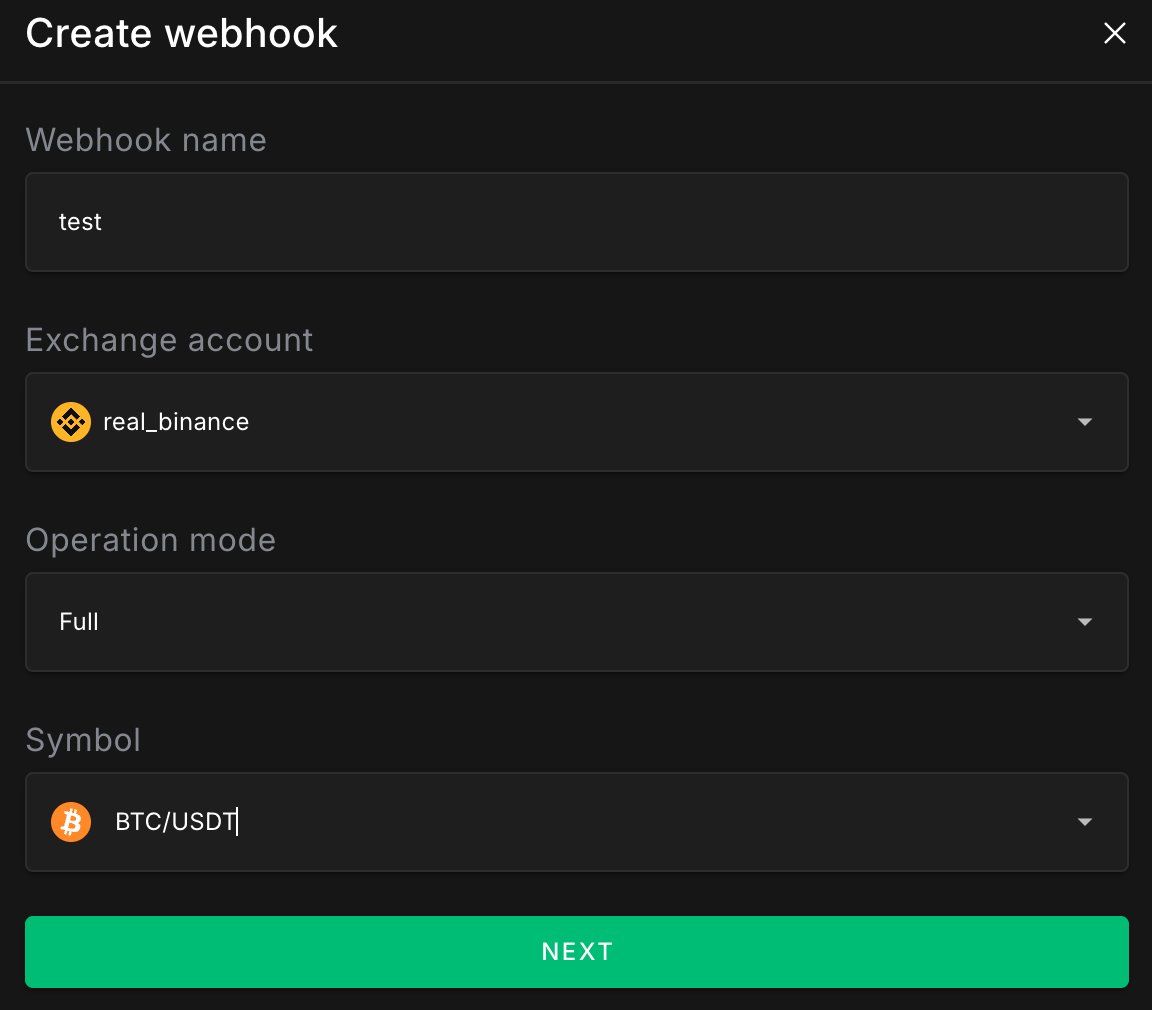
1. Navigate to the **Webhooks** section from the main menu.
2. Click the **Create New** button.
3. Fill in the initial details for your webhook:
* **Webhook name**: A friendly name to identify your webhook (e.g., "BTC 15m RSI Strategy").
* **Exchange account**: The connected exchange account where trades will be executed.
* **Operation mode**: Choose how the webhook will handle signals. "Full" mode allows for both long and short positions.
* **Symbol**: The trading pair this webhook will control (e.g., `BTC/USDT`).
Click **Next** to proceed to the connection setup.
***
### Part 2: Connecting Your External Signal Service
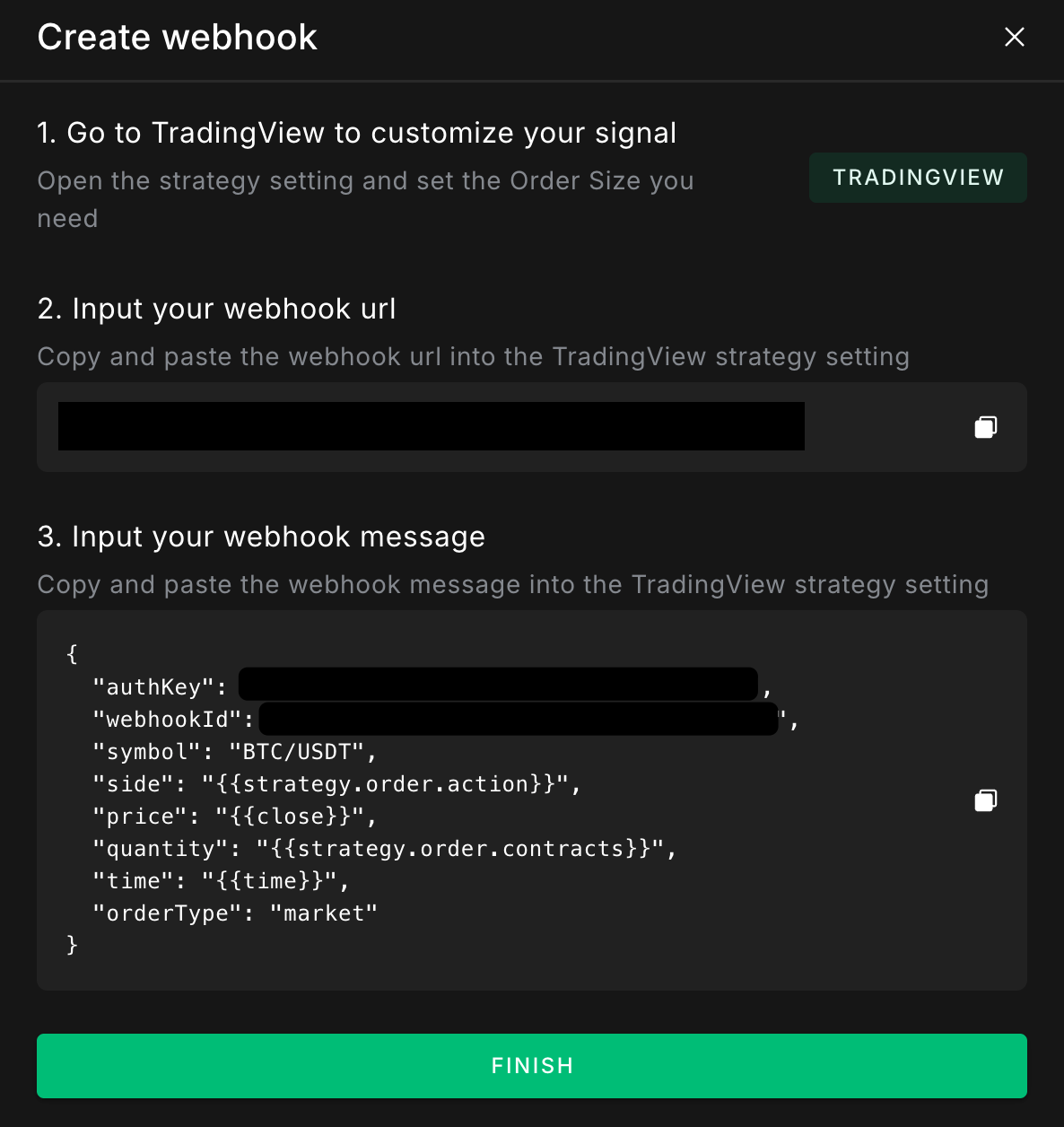
This screen provides the two key pieces of information you need to paste into your external platform's alert settings.
> **Note**: The ability to send webhook notifications is often a premium feature on many charting and signaling platforms.
#### Step 1: Set Up Your Alert
In your external platform, create a new alert for your chosen symbol. This can be based on a price level, an indicator, or a custom strategy.
#### Step 2: Input Your Webhook URL
In your alert's notification settings, locate the **"Webhook URL"** field. Copy the URL from our platform and paste it here.
#### Step 3: Input Your Webhook Message
Copy the entire **Webhook Message** template from our platform. This is a specially formatted JSON message. Paste this directly into the "Message" or "Payload" text box in your alert's settings.
The `{{...}}` placeholders are special variables that many platforms can automatically replace with real-time data (like price, order side, etc.) when the alert is triggered. **Do not change these placeholders unless you are an advanced user who understands the required format.**
Once you've configured the alert, save it. Back in our platform, click **FINISH**.
***
### Part 3: Monitoring Your Webhook
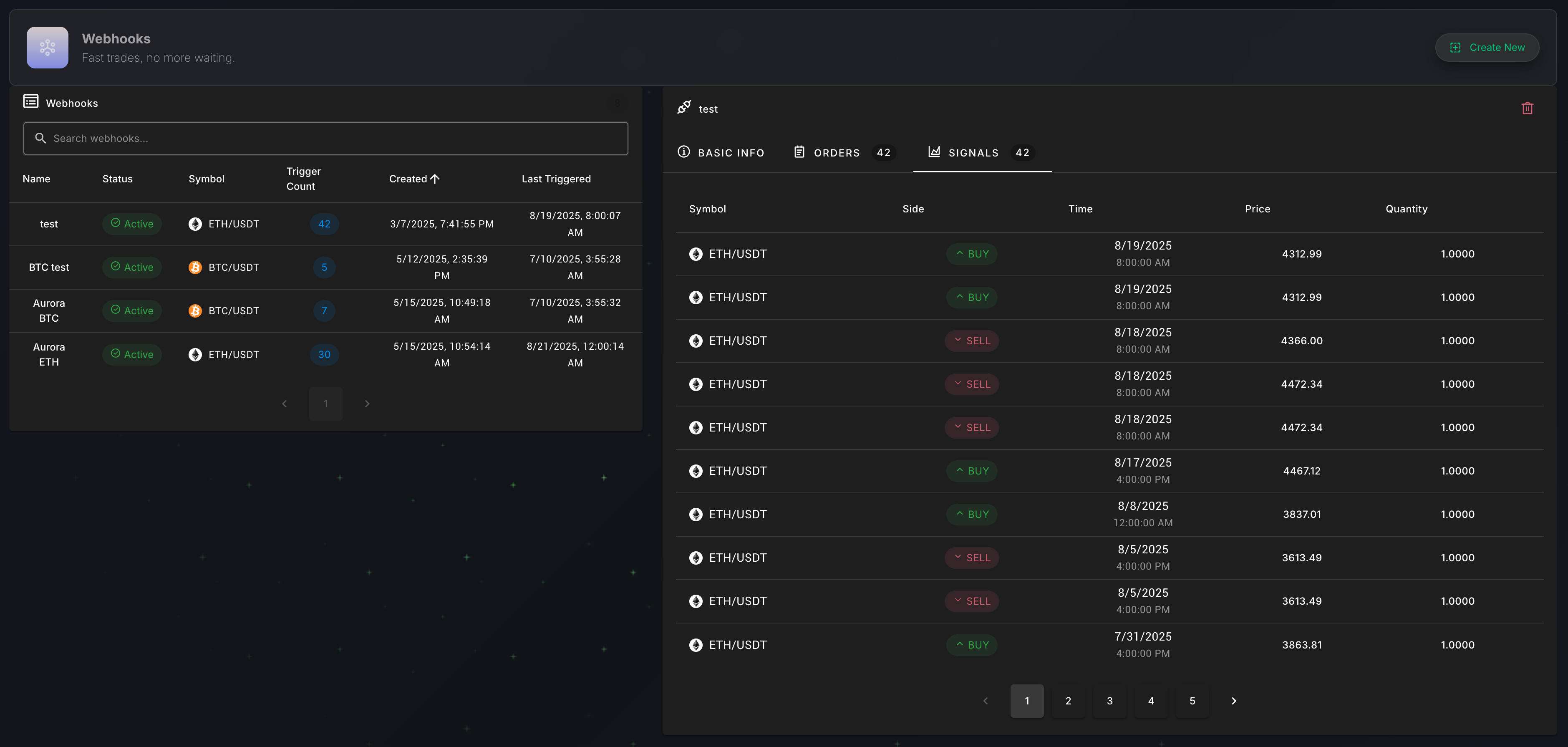
Once created, you can monitor all your webhooks from the main dashboard.
The list on the left shows all your webhooks, their status, and trigger counts. Clicking on a webhook will open its detailed view on the right, which contains three tabs:
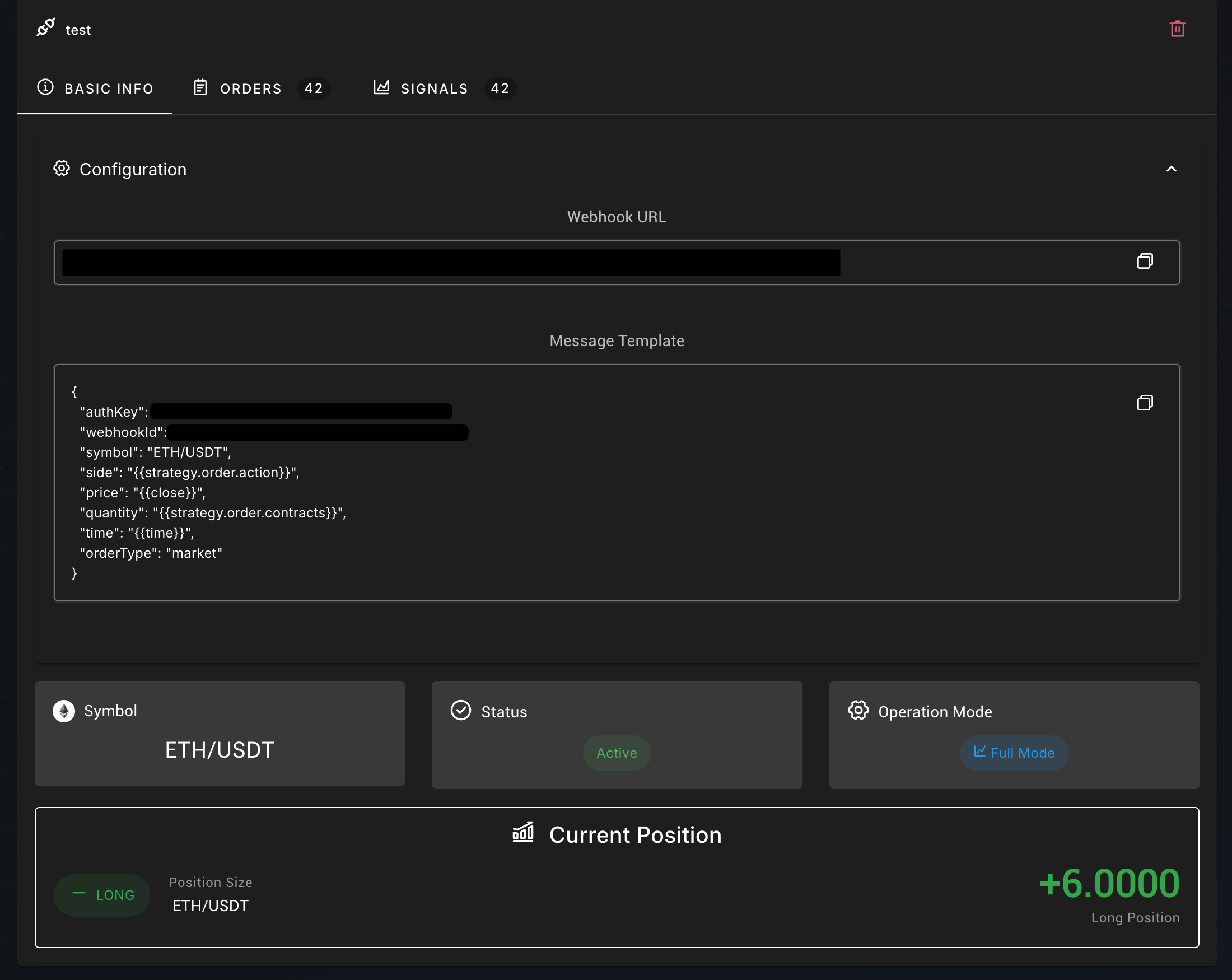
#### Basic Info
This tab shows the webhook's configuration details and, most importantly, its **Current Position**. This allows you to see at a glance if your strategy is currently in a long or short position and its size.
#### Orders
This tab displays a log of the **actual trades** that have been successfully executed by the exchange as a result of the signals. This is your confirmation that your strategy is running as intended.
#### Signals
This tab shows a log of every **incoming signal** received from your external service. This is a critical tool for debugging. If a trade doesn't execute when you expect it to, the first place to check is here. If the signal is not listed, the issue is with your alert setup on the external platform. If the signal is here but there is no corresponding order, please contact support.