The Dashboard: Your Mission Control
Welcome to your mission control! The Algo724 dashboard is where you'll monitor markets, track your bots, and see your portfolio's performance. It's designed to give you all the information you need at a glance.
Let's break it down into its main components.

1. The Header: Navigation & Quick Actions
The very top of your dashboard provides access to key actions and information.
Symbol Selection: At the far left, you'll see a trading pair like BTC/USDT. Click this to open the market selection menu and change the asset displayed on the main chart.
Market Information: Next to the symbol, you can see key 24-hour data for the selected market, including the current
Price,24h Change,24h High, and24h Low.Main Action Buttons: On the right, you have two important buttons:
Docs: This button takes you directly to this user manual.
Launch Bot: This is the button you'll click to start creating and configuring a new trading bot.
2. Your Portfolio Snapshot: Asset Balance
On the right-hand side of the dashboard, you'll find the Asset Balance panel. This gives you a real-time snapshot of your entire portfolio on the selected exchange account.

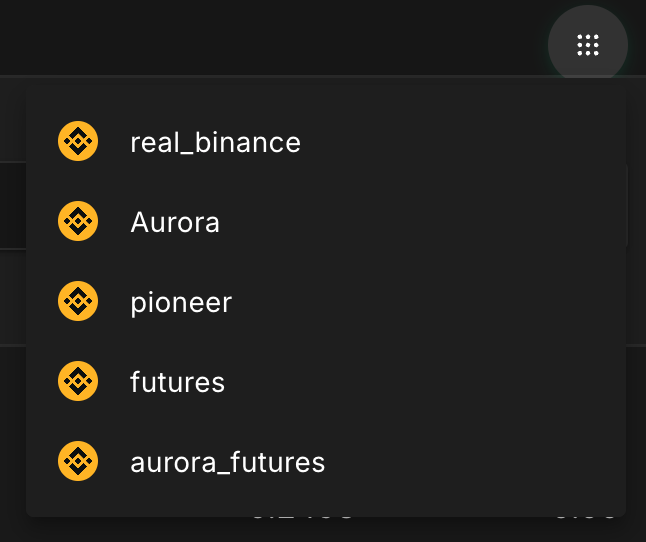
Switching Accounts: If you have multiple exchange accounts connected to Algo724, you can click the dropdown menu at the top of this panel (e.g., where it says "aurora") to switch between them. This will update the balance and the bot list to show data for the selected account.

NAV (Net Asset Value): This is the total estimated value of all your crypto assets held in the selected account, shown in USDT.
Asset List: Below the NAV, you get a detailed breakdown of each coin you hold (e.g.,
BTC,ETH,USDT). It shows you the totalValuefor each coin, the amountAvailablefor trading, and the amountLockedin open orders by your bots.
3. The Price Chart (TradingView)
The large chart in the center is the heart of the dashboard. It shows you the price history for the market you've selected.

Candlesticks: Each bar is a "candle." A green candle means the price went up during that period; a red candle means it went down.
Timeframes: Use the timeframe buttons (
1m,1h,1d) to zoom in or out on the price history.Indicators (RSI & MACD): The charts below are tools to help understand the market's "mood." The RSI helps spot "overbought" or "oversold" conditions, while the MACD helps identify changes in momentum. You don't need to be an expert in these to use our bots, but they are great for observation.
4. Bot Ranking & Performance
Next to the Asset Balance is the Bot Ranking. Think of this as a leaderboard showing the top-performing bots currently running on the platform. It's a great place to get ideas and see what's working well for other users.

Clicking on any bot in this list opens a detailed view, allowing you to learn from its strategy and settings.

5. The Bot Dashboard: Your Active Operations
Below the main chart is where you manage every bot you have launched. You can switch between your Running, Paused, and Stopped bots using the tabs.

Columns: The list gives you key data for each bot, including its
Pair/Account, currentValue/Initialinvestment,Profit, andRuntime.Actions Menu: Hover over any bot to access its controls:
Grid Icon (Details): Expands the row to show a full performance breakdown.
Copy Icon (Duplicate): Instantly copies the bot's settings to launch a new one.
Pause/Play Icon: Temporarily pauses or resumes a bot.
Trash Icon (Stop): Permanently stops the bot.
Deep Dive: The Bot Details View
Clicking the Grid Icon expands the bot row, giving you a comprehensive analysis with metrics like Average Buy Cost, Total Profit / APY, and a full transaction history.

Last updated