> For the complete documentation index, see [llms.txt](https://docs.algo724.com/llms.txt). Markdown versions of documentation pages are available by appending `.md` to page URLs; this page is available as [Markdown](https://docs.algo724.com/getting-started/manual-trading.md).
# Manual Trading
## 📈 The Trading Terminal: Your Manual Trading Interface
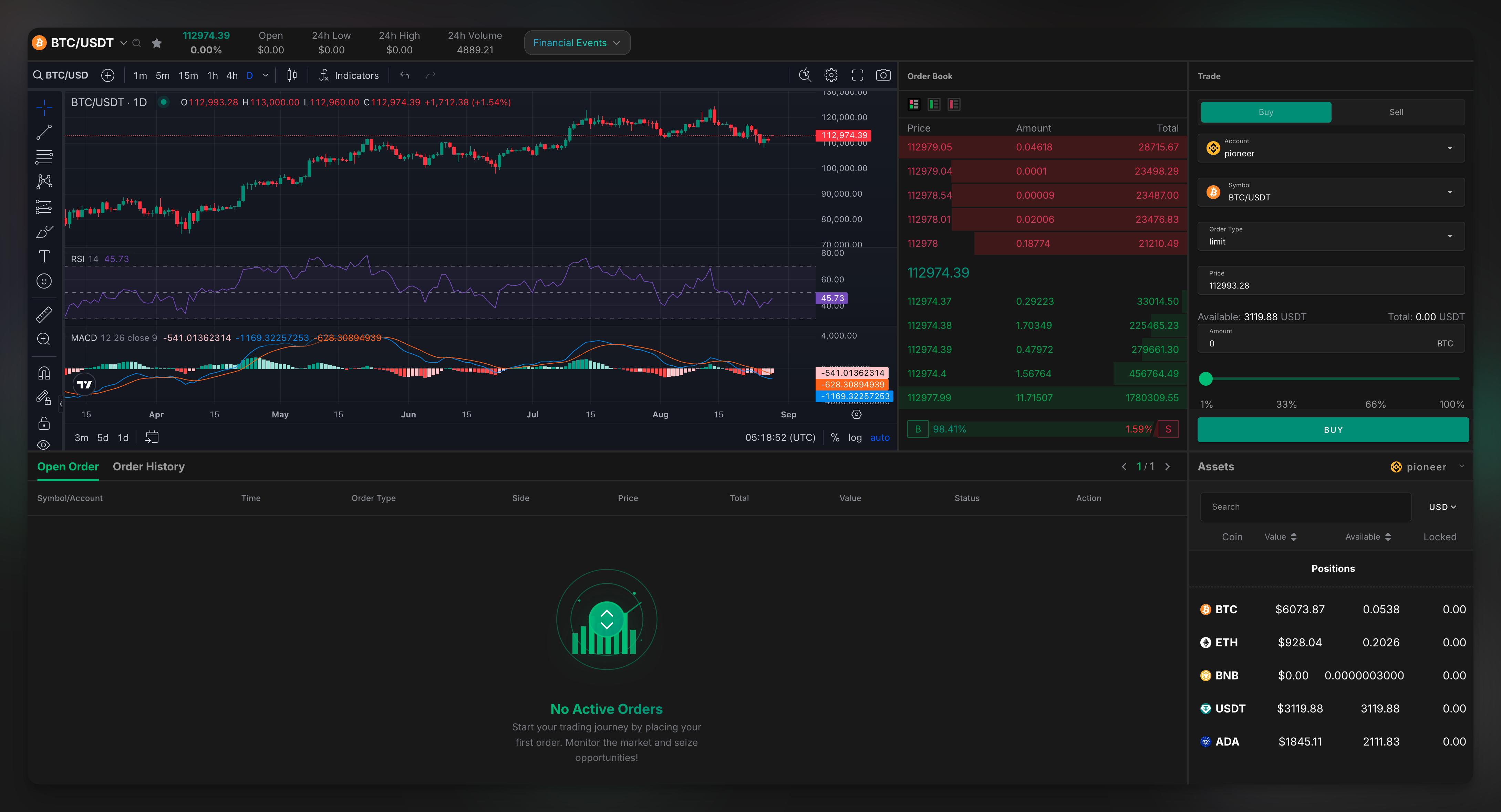
In addition to our powerful automated bots, the platform includes a full-featured trading terminal. This interface is for when you want to take direct control, execute a specific trade quickly, or manage your portfolio assets manually.
***
### An Overview of the Trading Screen
The trading terminal brings all the essential tools into one comprehensive view.
The screen is divided into several key sections:
* **The Chart & Order Book**: The central area for market analysis.
* **The Trade Panel**: Where you will build and execute your orders.
* **The Assets Panel**: A real-time view of your account balances.
* **Order Management Tabs**: Where you can track your open orders and view your trade history.
***
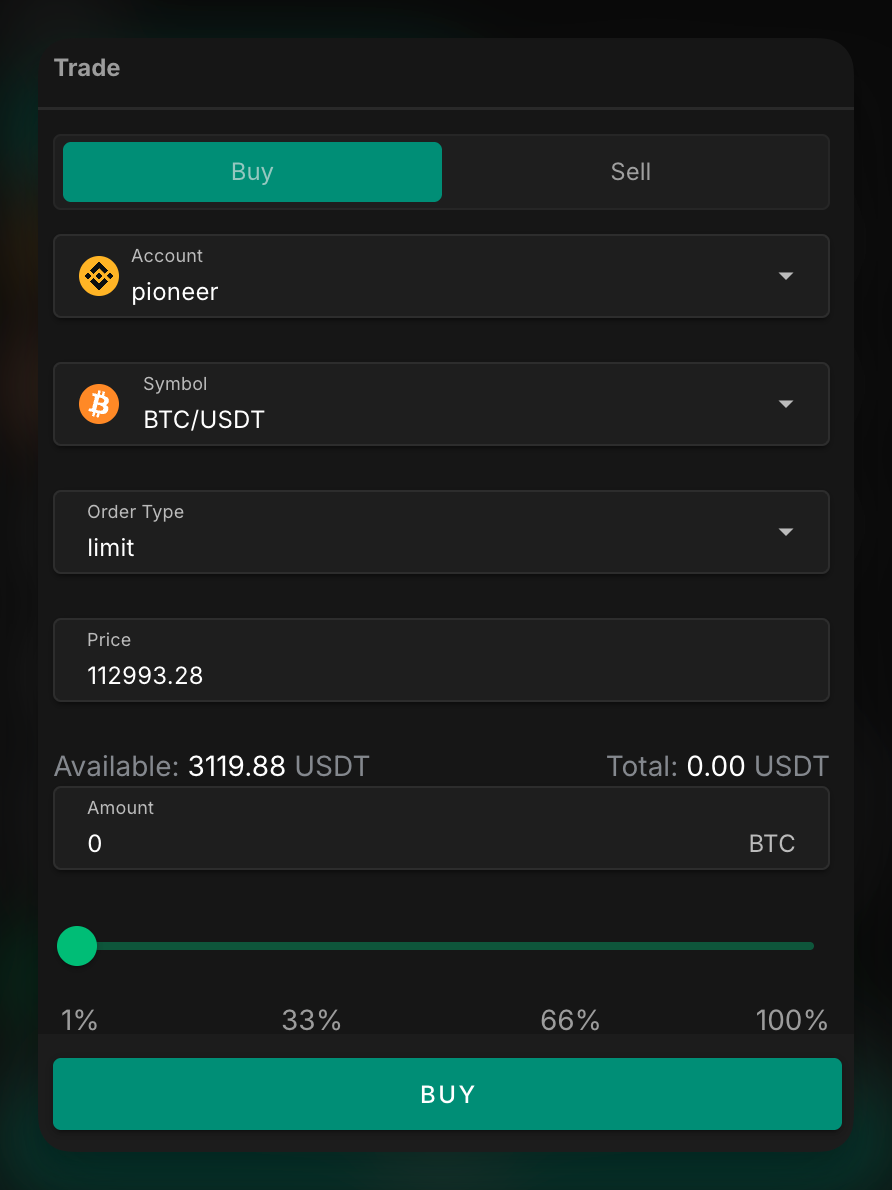
### The Trade Panel: Executing Your Order
This panel on the right is where all the action happens. Here’s a step-by-step guide to placing a trade.
1. **Select Buy or Sell**: Choose the action you want to take at the very top.
2. **Choose Account & Symbol**: Select the **Account** (e.g., pioneer) you want to trade on and the **Symbol** (e.g., BTC/USDT) you want to trade.
3. **Set Order Type**:
* **Limit**: An order to buy or sell at a **specific price or better**. The trade will only execute if the market reaches your price.
* **Market**: An order to buy or sell **immediately** at the best available current price.
4. **Enter Price and Amount**: For a limit order, enter the desired **Price**. Then, enter the **Amount** of the asset you wish to trade.
5. **Use the Slider**: You can use the percentage slider as a quick way to set the order size based on your available funds.
6. **Place the Order**: Review the details and click the final **BUY** or **SELL** button to submit your order.
***
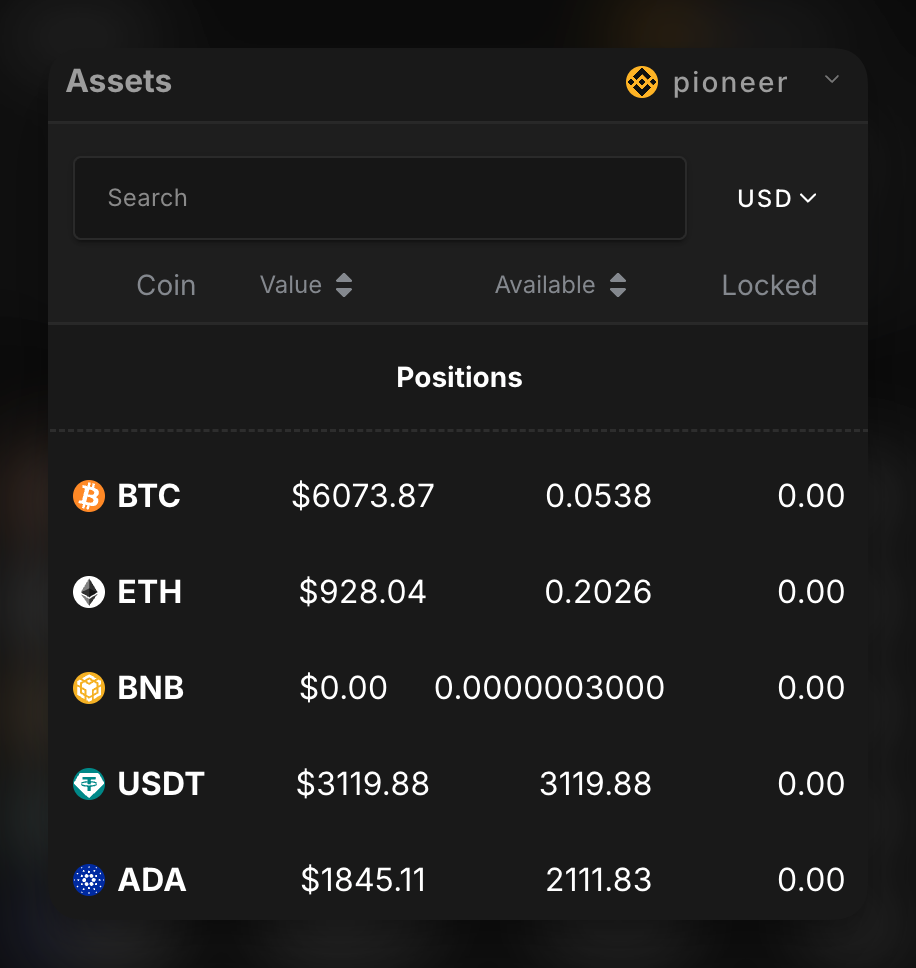
### The Assets Panel: Monitoring Your Balances
Below the trade panel, the Assets panel gives you a real-time view of your funds on the selected exchange account.
* **Coin**: The asset ticker.
* **Value**: The estimated value of your holdings in USD.
* **Available**: The amount you can currently use for new trades.
* **Locked**: The amount currently reserved in open orders.
***
### Order Management: Tracking Your Trades
At the bottom of the screen, you can track all your trading activity.
* **Open Orders**: This tab displays a list of all your active limit orders that have not yet been filled or canceled.
* **Order History**: This tab shows a complete log of all your past orders, whether they were filled, partially filled, or canceled. You can filter this view by **Date Range**, **Account**, and **Symbol**, and use the **Export** button to download your trade data.